Google Pay
Learn how to integrate Google Pay, including domain registration, payment requests, and processing.
In this guide, you will learn how to directly integrate Google Pay with SumUp. Please note that you can also offer Google Pay through our Payment Widget (see Payment Widget documentation).
Prerequisites
Section titled “Prerequisites”- You have a SumUp merchant account and have already filled in your account details.
- If you want to test payments without involving real funds, create a sandbox merchant account.
- Review Google Pay API terms of service.
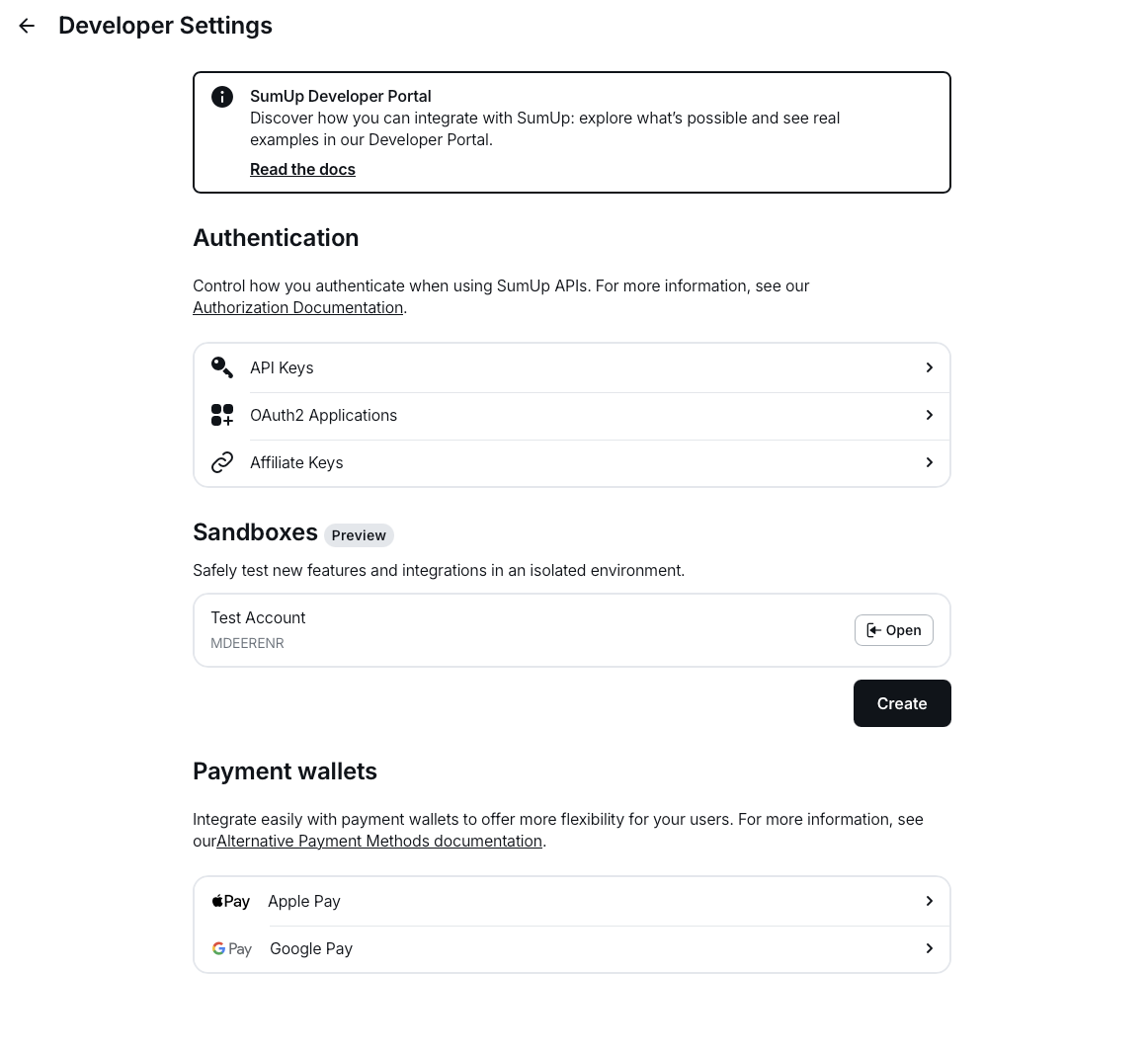
- Complete the domain onboarding setup steps described in your Dashboard under Settings > For developers > Payment wallets. You can read Google’s tutorial Google Pay for Payments, which covers the requirements you’re expected to follow in order to successfully offer this payment method.
Accepting Google Pay Payments with SumUp
Section titled “Accepting Google Pay Payments with SumUp”Considering you’ve adhered to the prerequisites, the following steps will enable you to begin accepting Google Pay payments through SumUp:
- Create a base payment request object, containing:
tokenizationSpecificationobject with the following parameters:gateway- always equal to “sumup”gatewayMerchantId- your SumUp merchant code
merchantInfoobject with the following keys:merchantId- unique identifier provided to you by Google once you register your domain with themmerchantName- your merchant name
const baseRequest = { apiVersion: 2, apiVersionMinor: 0, merchantInfo: { merchantId: '123456789123456789' merchantName: 'Example Merchant', }, allowedPaymentMethods: [ { type: 'CARD', parameters: { allowedAuthMethods: ['PAN_ONLY', 'CRYPTOGRAM_3DS'], allowedCardNetworks: ['MASTERCARD', 'VISA'], }, tokenizationSpecification: { type: 'PAYMENT_GATEWAY', parameters: { gateway: 'sumup', gatewayMerchantId: 'exampleGatewayMerchantId', }, }, }, ],};- Load the Google Pay API JavaScript library on the web page you will offer this payment method
- Initialize a
PaymentsClientobject for the environment you are implementing. Two values are possible here:TESTfor testing the integration andPRODUCTIONfor live payments.
const paymentsClient = new google.payments.api.PaymentsClient({ environment: 'PRODUCTION',});- Check readiness to pay with Google Pay API
- Launch the Google Pay button
- Create a PaymentDataRequest using the
baseRequestobject and append thetransactionInfoandmerchantInfoobjects. YourPaymentDataRequestshould look like this:
const paymentDataRequest = { apiVersion: 2, apiVersionMinor: 0, merchantInfo: { merchantName: 'Example Merchant', }, allowedPaymentMethods: [ { type: 'CARD', parameters: { allowedAuthMethods: ['PAN_ONLY', 'CRYPTOGRAM_3DS'], allowedCardNetworks: ['MASTERCARD', 'VISA'], }, tokenizationSpecification: { type: 'PAYMENT_GATEWAY', parameters: { gateway: 'sumup', gatewayMerchantId: 'exampleGatewayMerchantId', }, }, merchantInfo: { merchantId: 'your_merchant_id', merchantName: 'your_merchant_name', }, transactionInfo: { totalPriceStatus: 'FINAL', totalPriceLabel: 'Total', totalPrice: `${checkoutInfo.amount}`, currencyCode: checkoutInfo.currency || 'EUR', countryCode: 'DE', }, }, ],};- Create a checkout with SumUp
- Call the
loadPaymentDatamethod and pass it thePaymentDataRequestas an argument. This method will respond in a Promise, where if resolved you will receive aPaymentDataobject - Process the checkout. The process checkout request body needs to include a
payment_typeofgoogle_payand agoogle_payobject, containing the response from the previous step
{ "payment_type": "google_pay", "id": "6te2da07-a7bd-4877-bc0a-e16cd909a876", "amount": 12, "currency": "EUR", "google_pay": { "apiVersionMinor": 0, "apiVersion": 2, "paymentMethodData": { "description": "Visa •••• 1111", "tokenizationData": { "type": "PAYMENT_GATEWAY", "token": "token-data" }, "type": "CARD", "info": { "cardNetwork": "VISA", "cardDetails": "1111" } } }}Troubleshooting
Section titled “Troubleshooting”Screenshots for Google
Section titled “Screenshots for Google”Google demands screenshots for the onboarding process, but you don’t have the integration ready yet? Simply add #sumup-widget:google-pay-demo-mode to your URL to render the Google Pay button for onboarding purposes.
Testing Google Pay Integration Locally
Section titled “Testing Google Pay Integration Locally”This is not possible at the moment. You need to use a staging environment and validate the test domain in Google API console.
Error Decrypting Google Pay Token
Section titled “Error Decrypting Google Pay Token”Internal Server Error with a message pointing to Google Pay token decryption error is most likely caused by the wrong environment value in the paymentsClient object. Make sure it’s set to PRODUCTION as below.
const paymentsClient = new google.payments.api.PaymentsClient({ environment: 'PRODUCTION',});